How Do I Access My Workstation From Anywhere in the World?
How do you make use of a powerful workstation while travelling without lugging it around with you? Can a computer that draws up to 200 watts switch itself on only when I actually need it, and stay off the rest of the time? And what do I even need that kind of hardware for? I’ll answer all of that in this article, so stick around to the end. Or — if you’d rather watch than read — see the video below and skip to the last section if you only care about the technical details.
How do you reach a computer that’s switched off?
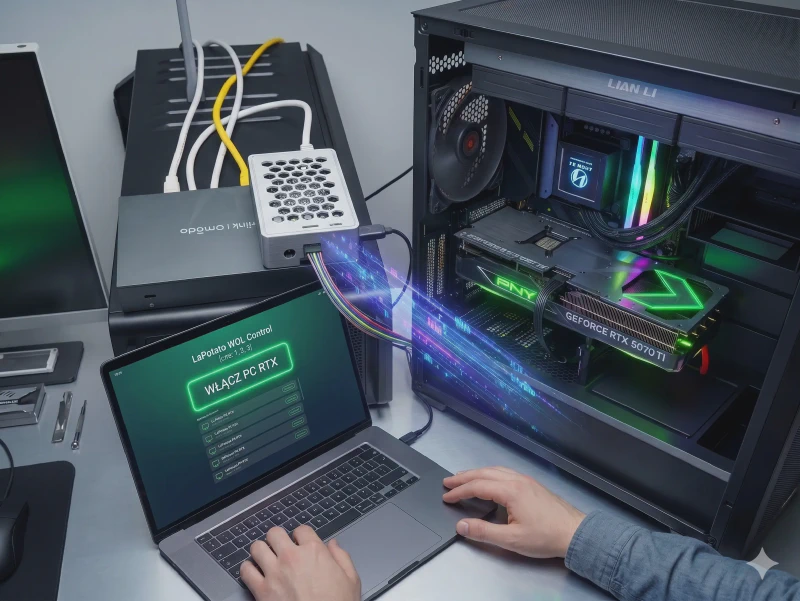
I have a workstation with a GeForce RTX 5070 Ti graphics card and 16 GB of VRAM. Perfect for running local LLMs, machine-learning workloads, and — yes — gaming. But I often work away from home and I want to be able to reach this machine. The thing is, it’s pretty power-hungry, so I don’t want it on all the time — I want it to wake up only when I actually need it.
The solution? A La Potato that’s permanently plugged in and always on — a tiny single-board computer (similar to a Raspberry Pi) that draws very little power. With a small script, it can send a magic ping to my workstation and bring it to life on demand.
Three goals for the project
I set three goals for this project. All of them had to be met for it to count as a success:
- Access to my graphics card — to my GPU — so I can run models and computations remotely.
- Access to my disk, files and data — so my stuff is at hand no matter where I am.
- Power the machine on only when I need it — not 24/7.
Tailscale — a smart VPN
The first piece is Tailscale Mesh. It’s a smart VPN where every machine you add joins a shared network and can see the others. Each machine gets its own IP, and you can see status info — whether it’s online, when it last checked in.
Why “smart”? If both machines happen to be on the same local network, the traffic doesn’t go out through an external provider. It doesn’t leave the house just to come back in — packets are sent directly between the devices. As a result, transfers are dramatically faster in that situation.
Tailscale runs on basically everything — I’ve tested it on Linux and Android. You can add aliases so you use machine names instead of IP addresses, plus a bunch of other handy features.
La Potato and the magic packet
The La Potato is always on and is also part of the Tailscale network. It runs a script that boots my workstation using Wake-on-LAN — by sending what’s called a magic packet across the network.
I SSH into the La Potato and run the script. The workstation wakes up, the RTX lights up, the machine slowly boots. The little potato waits anywhere from a few seconds to a dozen or so for the workstation to come online. Once it does, I get the message: “Homelab is awake”.
A separate router
On top of all this I have the La Potato paired with a separate TP-Link router. The point of the dedicated router is that I can move the whole setup to a different network with zero reconfiguration. The IP address is the one set by my own router, so I just plug it into a new uplink and everything keeps working.
What happens once it’s up?
On the workstation I have all the mini-services I need set to launch on autostart. By the time the La Potato has finished waking the workstation, everything is ready to go. The GPU is available, the disks are mounted, the services are running.
Technical details
If you’re curious about how the wake-up script works, how to configure Tailscale or how to set up Wake-on-LAN — head over to my technical blog, where I walk through it step by step.
See other articles in the same category
Join the nomAId journey

Subscribe to stay up to date.